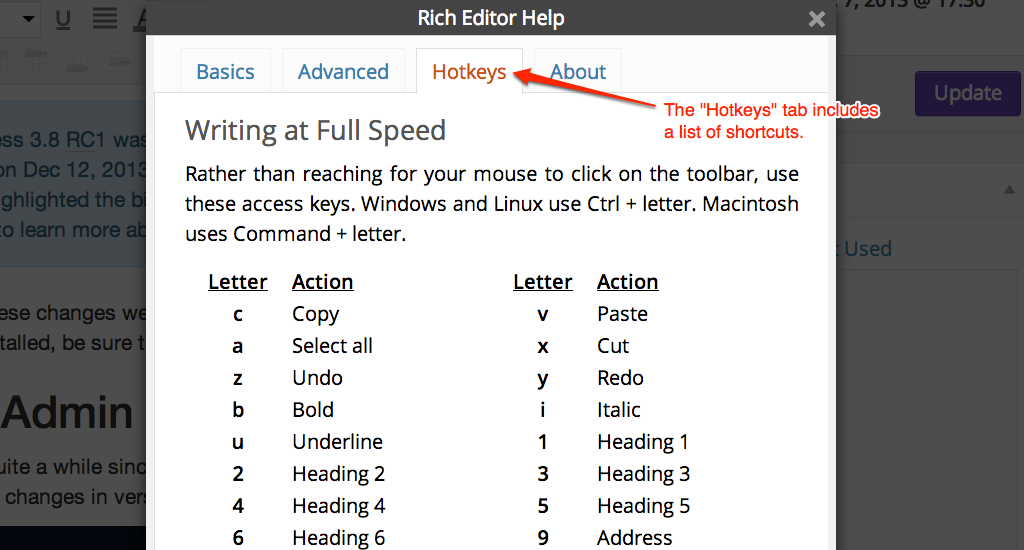
List of WordPress Keyboard Shortcuts for Writing at Full Speed

Problem with Safari

Unfortunately, Safari has a different behavior for cmd + 1, cmd + 2, etc. They open a website from your Favorites Bar. There is no default way to turn off this functionality, and even deleting all your favorites doesn’t work. Open source to the rescue. There’s a plugin you can add to Safari to change the default behavior to switching tabs. I haven’t tested to see if this will allow the Headings shortcuts to work or not, so if you use Safari & are willing to give this a shot, please let us know.

If you know of any WordPress keyboard shortcuts that we left out, please let us know in the comments.

via List of WordPress Keyboard Shortcuts for Writing – WordPress Hotkeys.
Can I distribute my iPhoto slideshow using the iPhoto theme music selection to YouTube or would that be copyright infringement?

There are a number of con-men who think that they can earn a quick buck from claiming that they own the copyright to Apple’s royalty-free jingles and sound effects included with the iLife applications. These are all free to use, as clearly stated in section 2.C of the iLife Software License Agreement:

“You may use the Apple and third party audio content (“Audio Content”) contained in or otherwise included with the Apple software, on a royalty-free basis, to create your own original soundtracks for your video and audio projects. You may broadcast and/or distribute your own soundtracks that were created using the […]

via Can I distribute my iPhoto slideshow using the iPhoto theme music selection to Facebook or would that be copyright infringement? – goto: answer.

ST Math – Accessing Homework

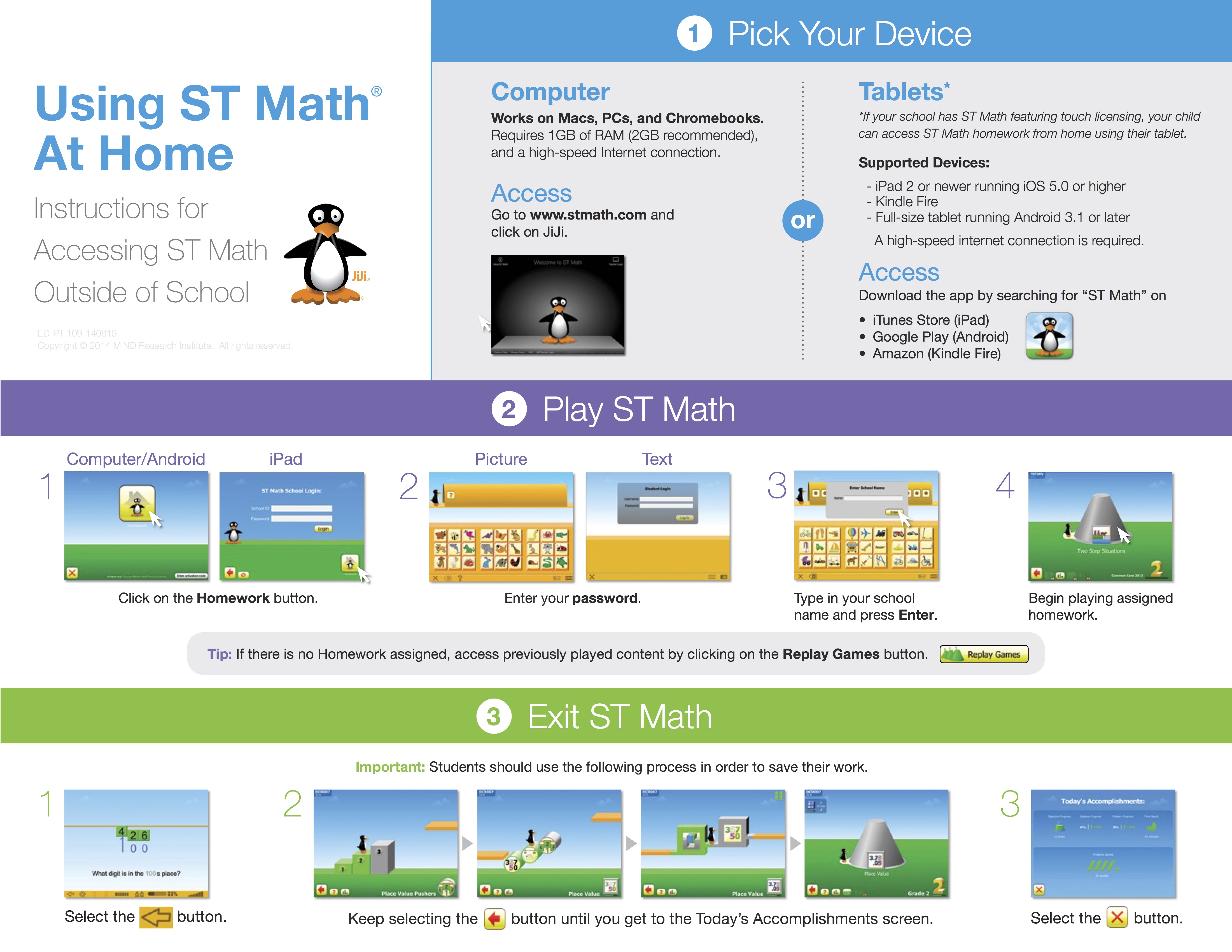
To access ST Math at home students need a computer with internet access.

  1. Go to stmath.com. Click on JiJi.
  2. Click on the Homework button.
  3. Enter your ST Math password.
  4. Enter your school name and press Enter.
  5. Begin playing assigned homework or click the green objectives button at the bottom to play objectives that have been completed.

Tip: If there is no Homework assigned, access previously played content by clicking on the green cones.

stmath

Hints for New Bloggers: Change Category, Enlarge Photo, Add Title!, Making Doc Links open in New Window

http://youtu.be/ndIGY8pEREM

Hints for New Bloggers:

Change Category: by default the category will be Announcements– but if every post is in Announcements and not Language Arts, History or Math, etc., then category links in the sidebar (one of WordPress’s most powerful content-management-tools) will be useless. As you make a new post if you save draft before you choose history or math, etc. it will default to Announcement… so best to get in the habit of choosing the category/ies when you open a new post window.

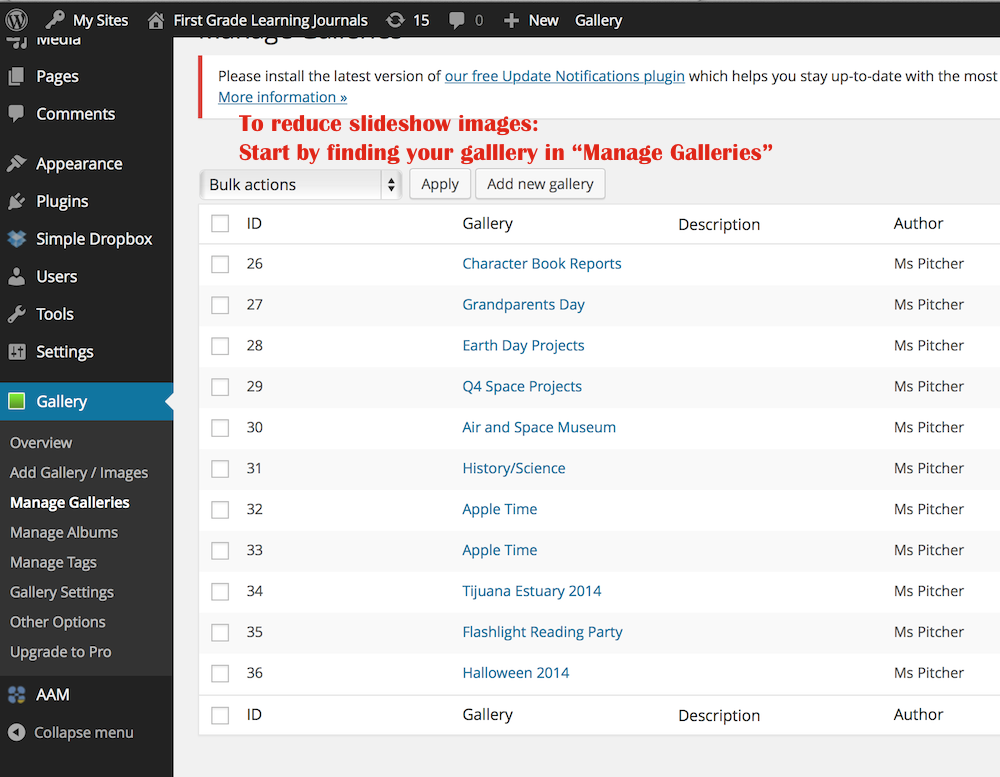
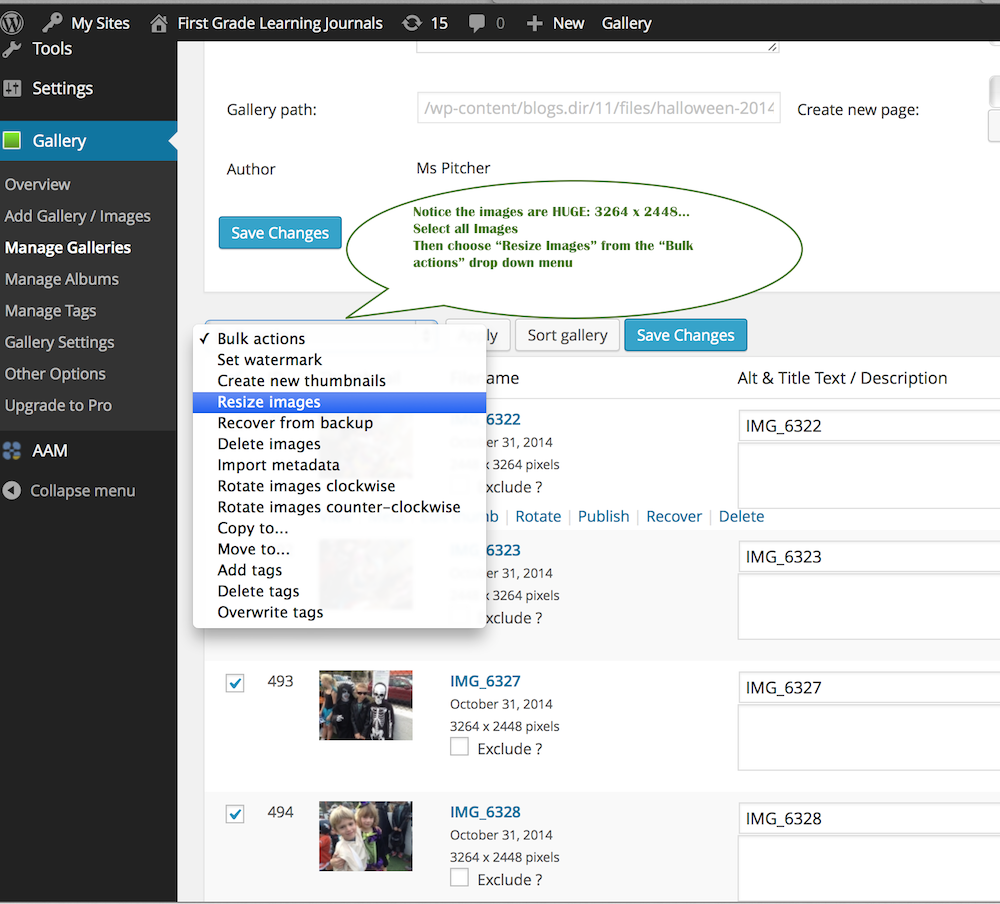
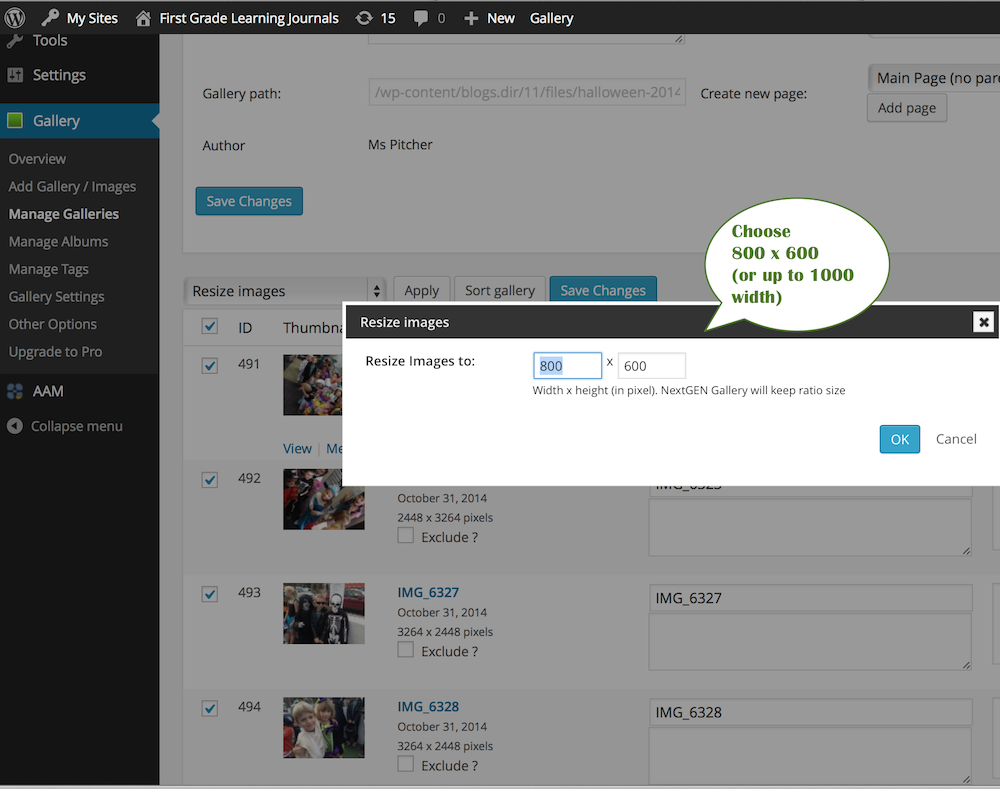
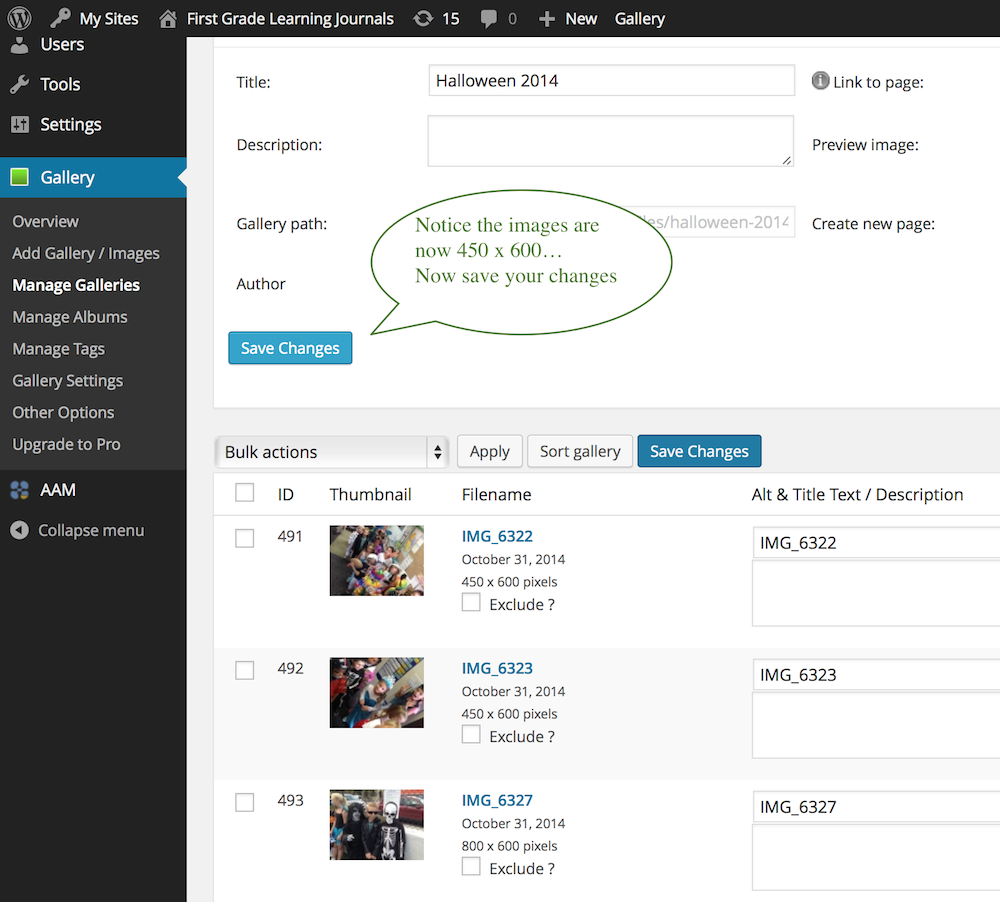
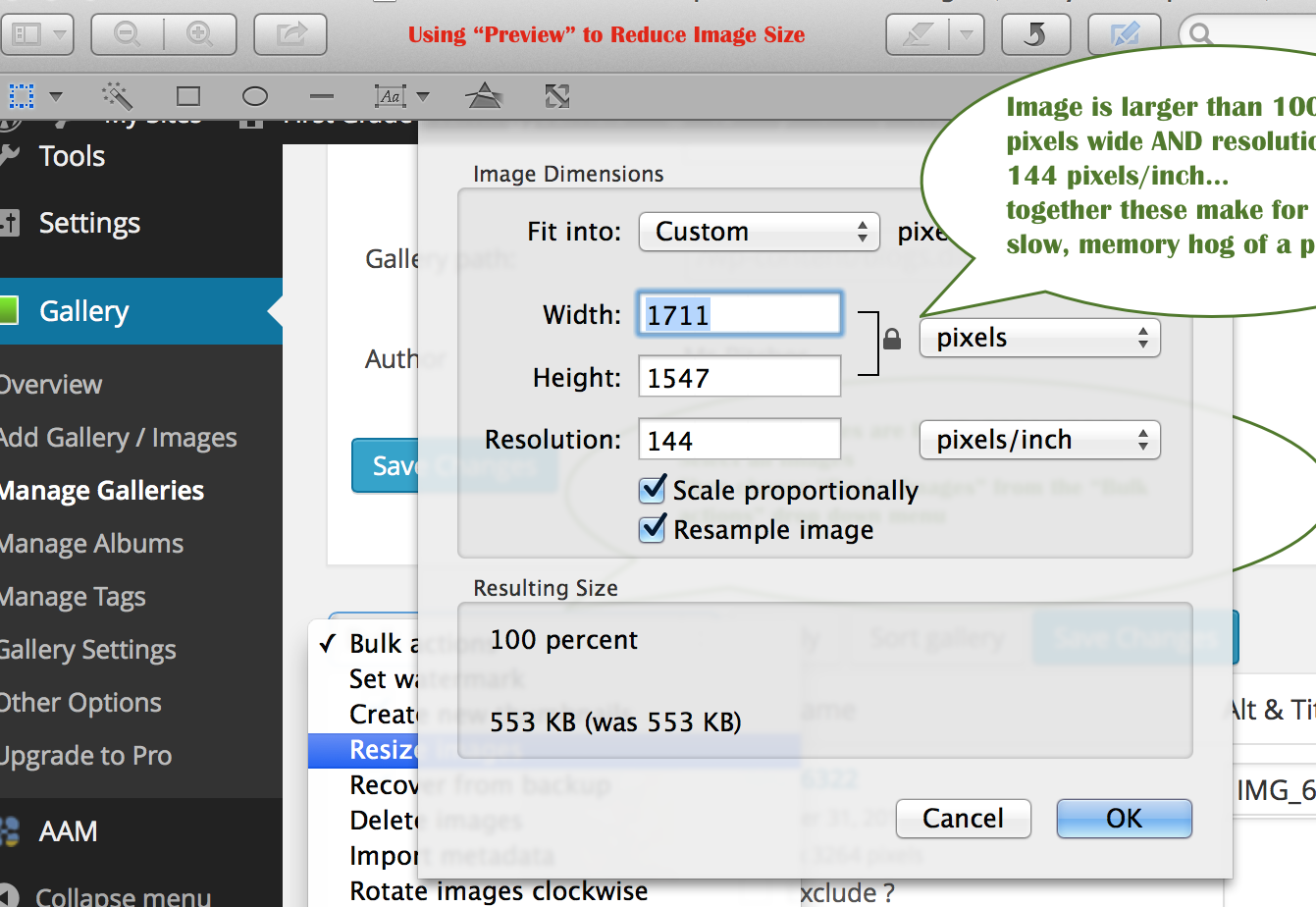
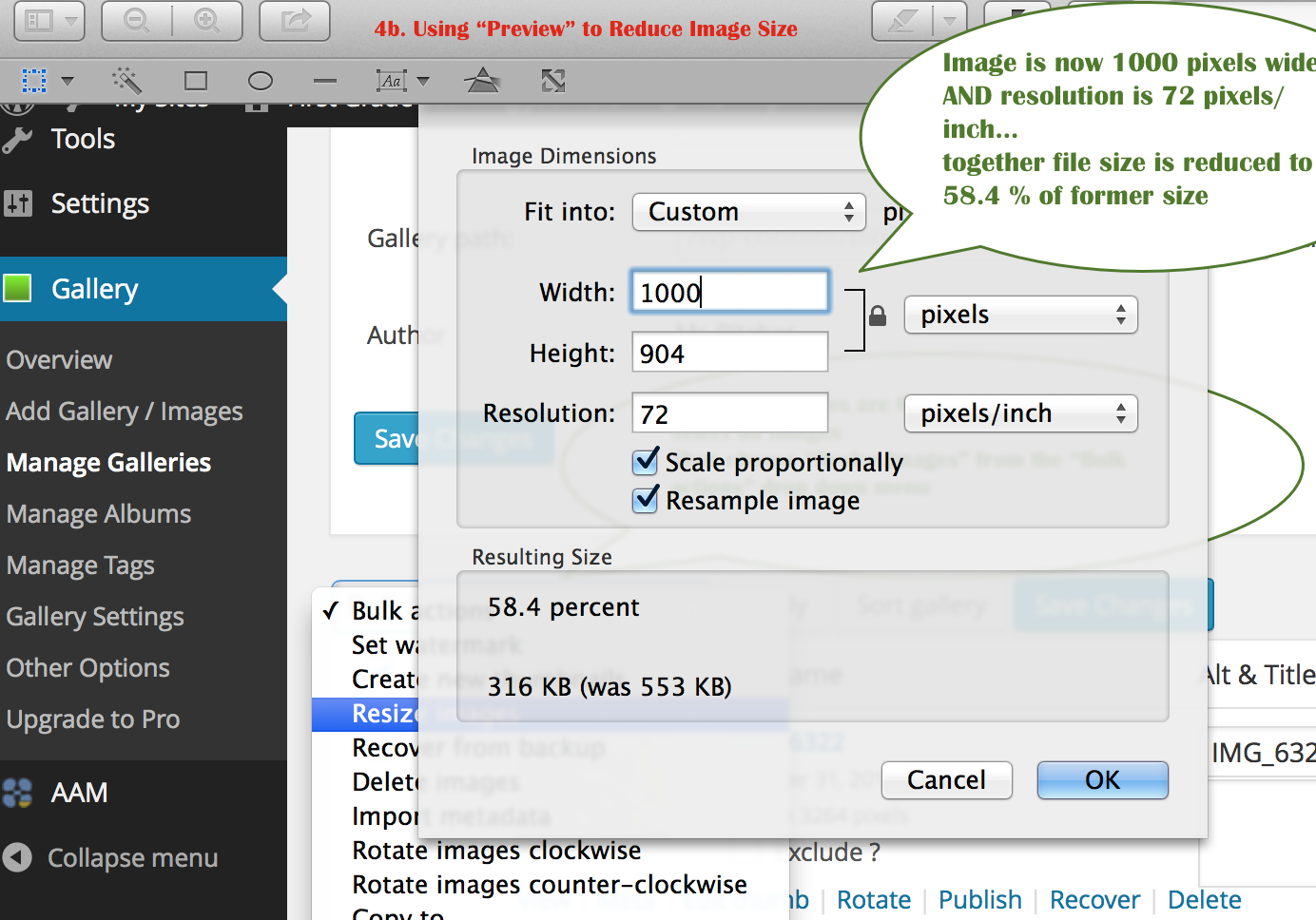
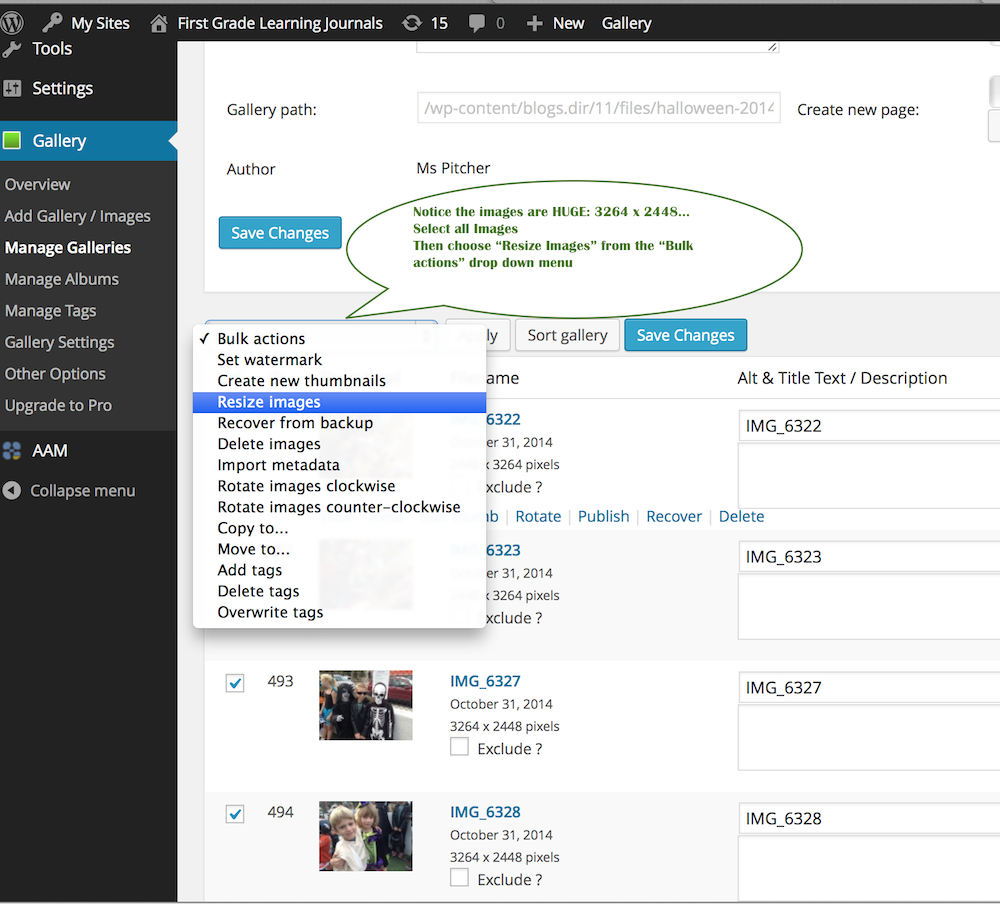
Enlarge Photo: we want photos to be as large as possible, but not so large that they break out of the frame–no more than 1000 px wide and they should be 72 dpi. You can batch edit the size of multiple photos in Preview* photo editing program that comes with your mac… or when making slideshows and importing multiple images through gallery, choose the reduce to 800 X ? option… *Note; you can set Preview to a custom width of
no more than 1000″ and it will remember it.

Add Title! Can’t forget to add a title to each blog–that’s what shows up in search, in Latest Posts, etc.

Making Doc Links open in New Window: if you choose open in new window it leaves your blog post open in a tab while student or parent looks at the syllabus, etc. they are downloading.

OTA has a new email provider

Old Town Academy now uses office 365 as our email service provider.

To access your school’s email from a web browser go to  

1- portal.office.com

2- Type your school email and temporary password

3- click on outlook tab located on top of the screen.

If you don’t have a temporary password please email thiago@otacharter.org from an alternate email address and request one from me.

To setup your email on your Mac | iPhone | iPad watch the videos below

Mac

iPad | iPhone


Get Detailed WiFi Info From the Menu Bar in Mac OS X: Option-Click WiFi Menu

Jun 15, 2011 – 10 Comments

You can retrieve extended wireless connectivity data and details from anywhere within Mac OS X by using a nifty trick that toggles the Wi-Fi menu bar item to display additional specifics about any wireless router. To do this, hold down the Option key and then click on the WiFi menu icon found on the Mac.

Find Extended Wi-Fi Network Details on the Mac

Option-clicking the wi-fi menu will display a sub menu under your active wifi connection that shows the following details:

  • what wireless band you are using (PHY Mode)
  • the routers SSID (BSSID)
  • what channel the wireless router is using
  • which encryption method (Security)
  • signal strength (RSSI)
  • the transmit rate
  • MCS index (details about MCS? Let us know)

You can also hover the mouse over other listed SSID’s to see a slightly more condensed version of this information for the additional networks.

All of this can be helpful for avoiding potential channel conflicts, or when troubleshooting wireless problems. And yes, I called it the WiFi menu rather than AirPort, since from Lion forward has moved away from the AirPort references, at least in regard to the menubar. That has stuck with all new versions of OS X and will continue forward, be it Mavericks or whatever other version you’re in.

via Get Detailed WiFi Info From the Menu Bar in Mac OS X.