Note: (Before, or after, you reduce width to < 1000 and resolution to 72 dpi)…
- Save images as jpegs, rather than png files… to further reduce size
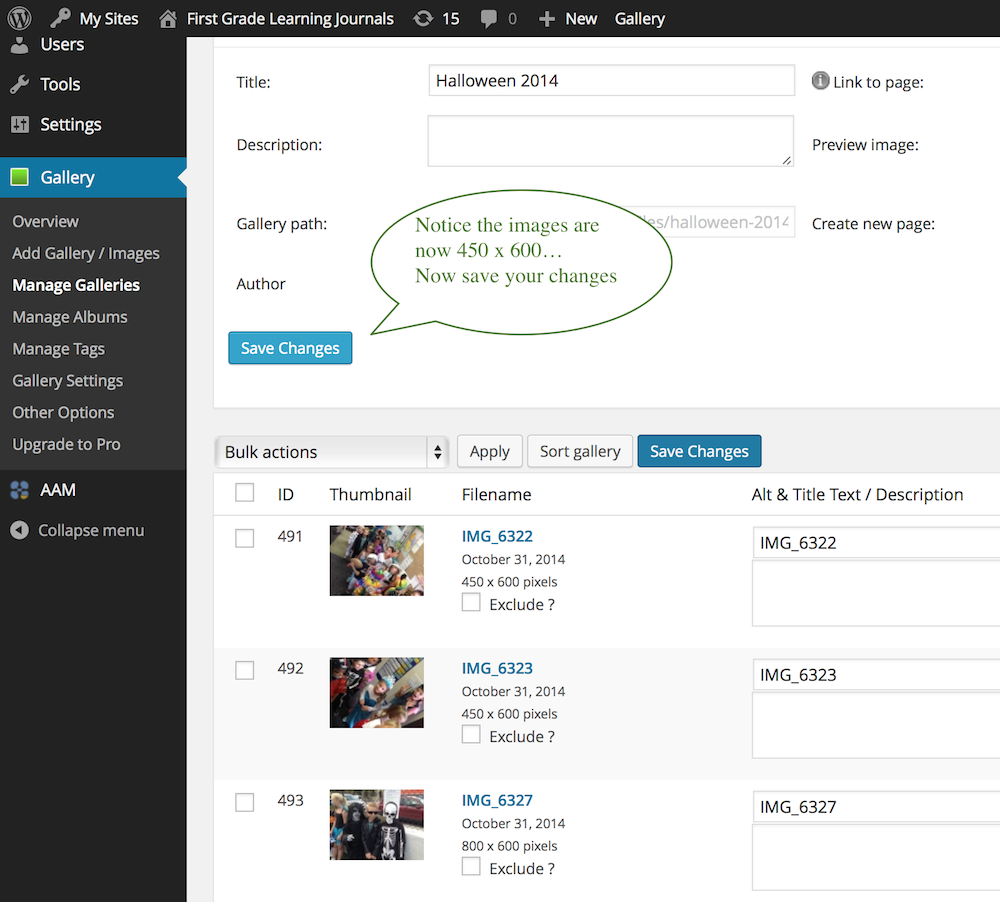
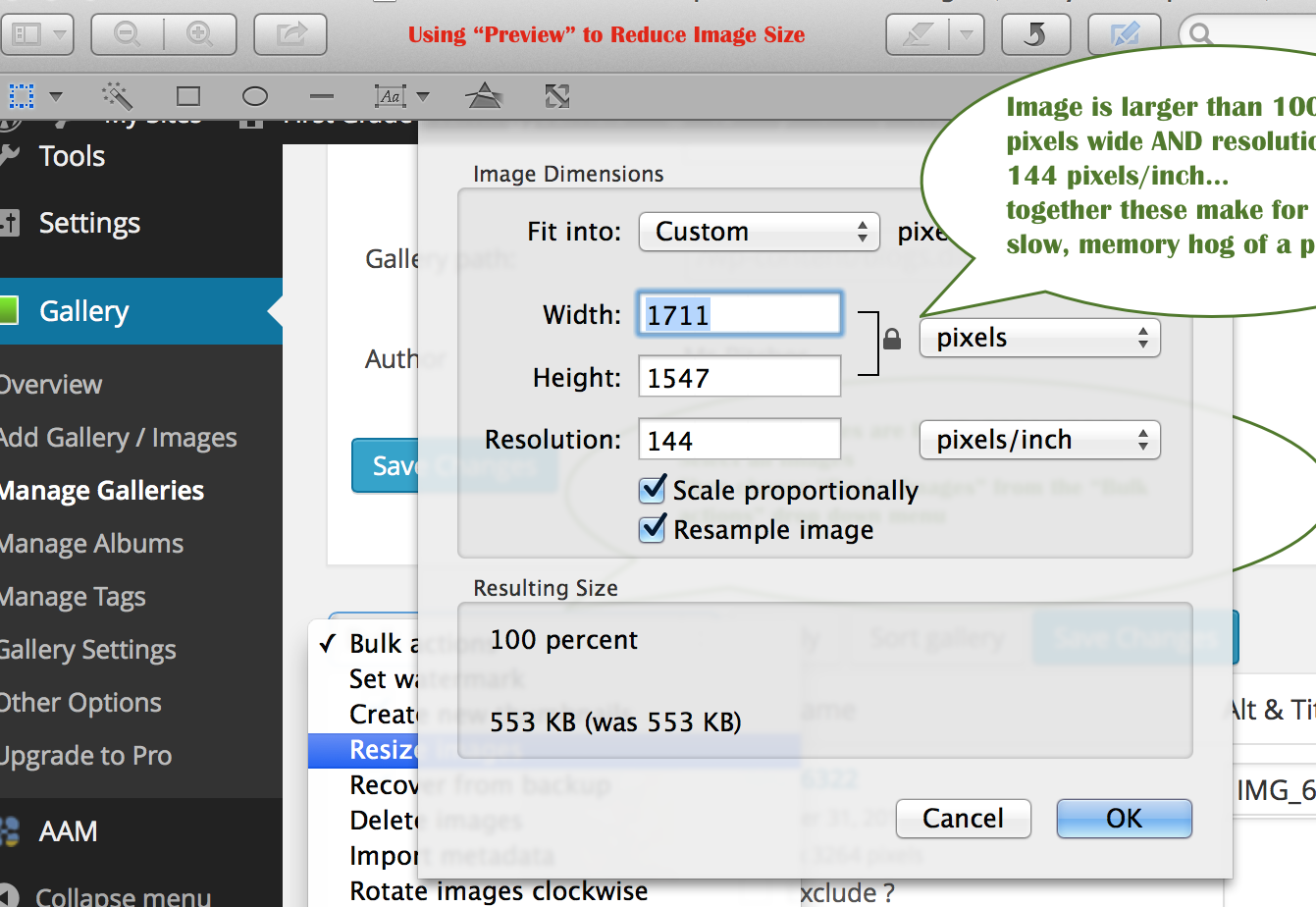
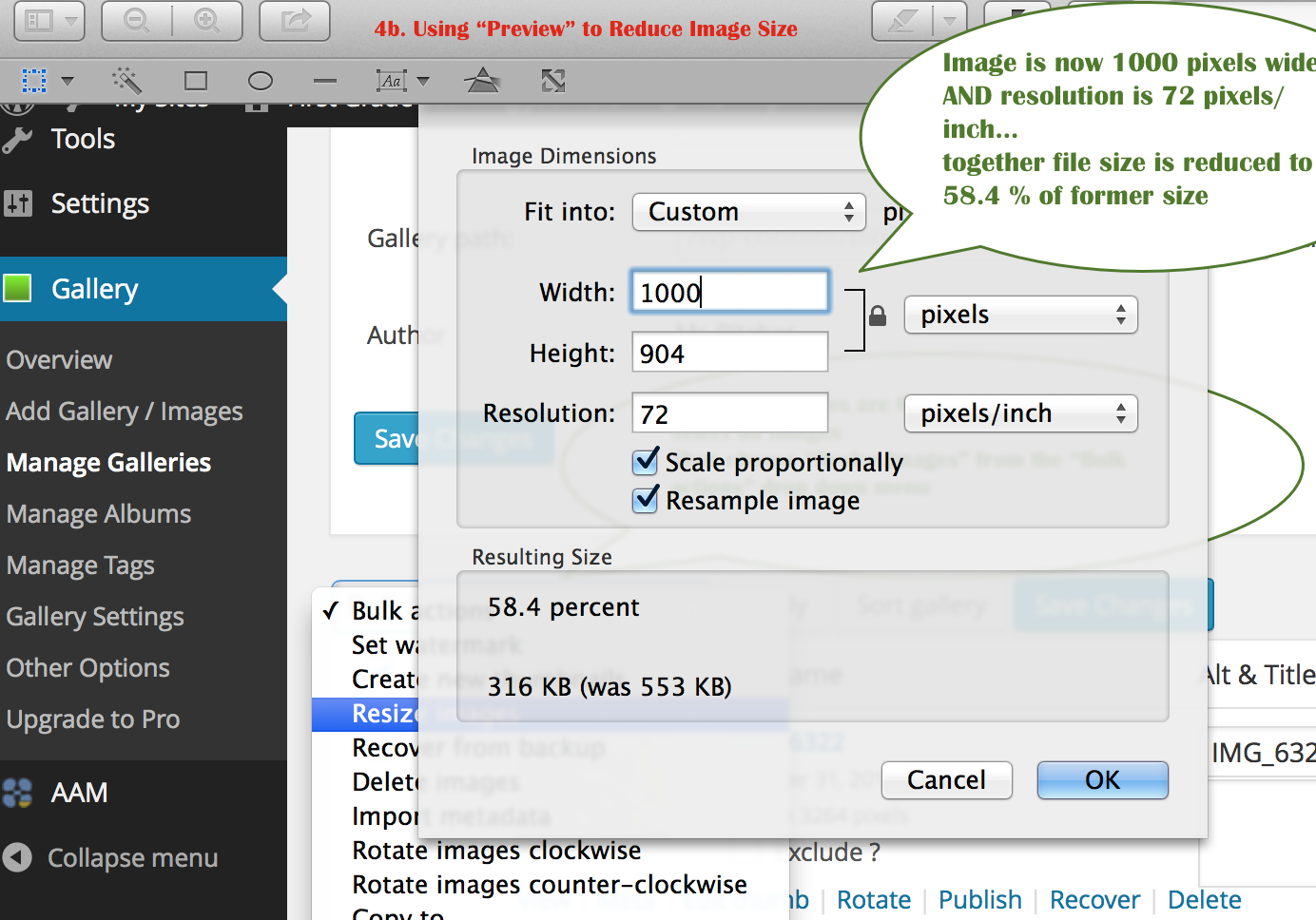
Note: (Before, or after, you reduce width to < 1000 and resolution to 72 dpi)…
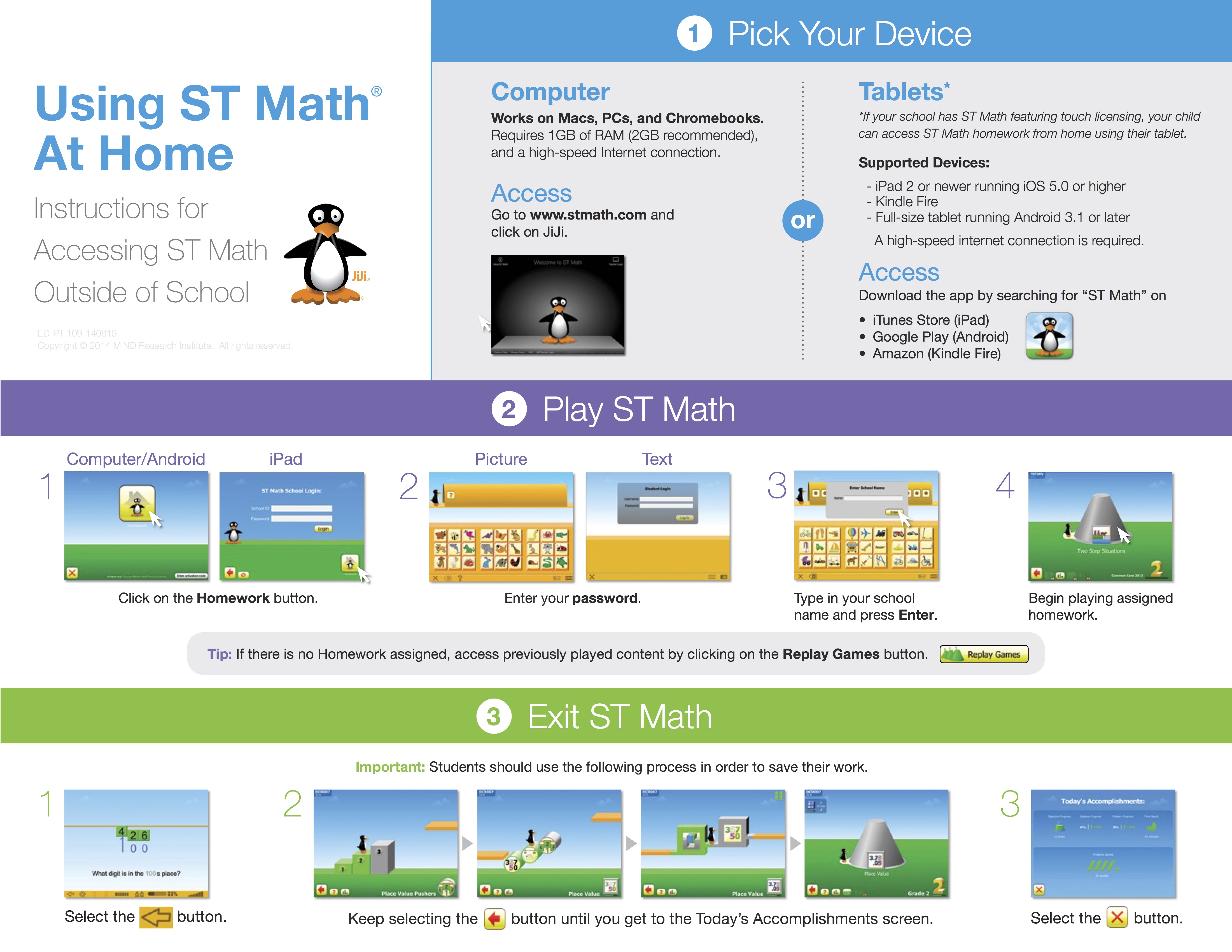
To access ST Math at home students need a computer with internet access.
Tip: If there is no Homework assigned, access previously played content by clicking on the green cones.
Inspiration Recent Update

Upgrade Information
New in Inspiration 9.2 — Support for Mac OS 10.9 (Mavericks) and import/export of files between Inspiration 9.2 and Inspiration Maps 1.4 for iPad!
CLICK HERE TO DOWNLOAD THE UPDATE
Please email Thiago@otacharter.org to get serial number
Hints for New Bloggers:
Change Category: by default the category will be Announcements– but if every post is in Announcements and not Language Arts, History or Math, etc., then category links in the sidebar (one of WordPress’s most powerful content-management-tools) will be useless. As you make a new post if you save draft before you choose history or math, etc. it will default to Announcement… so best to get in the habit of choosing the category/ies when you open a new post window.
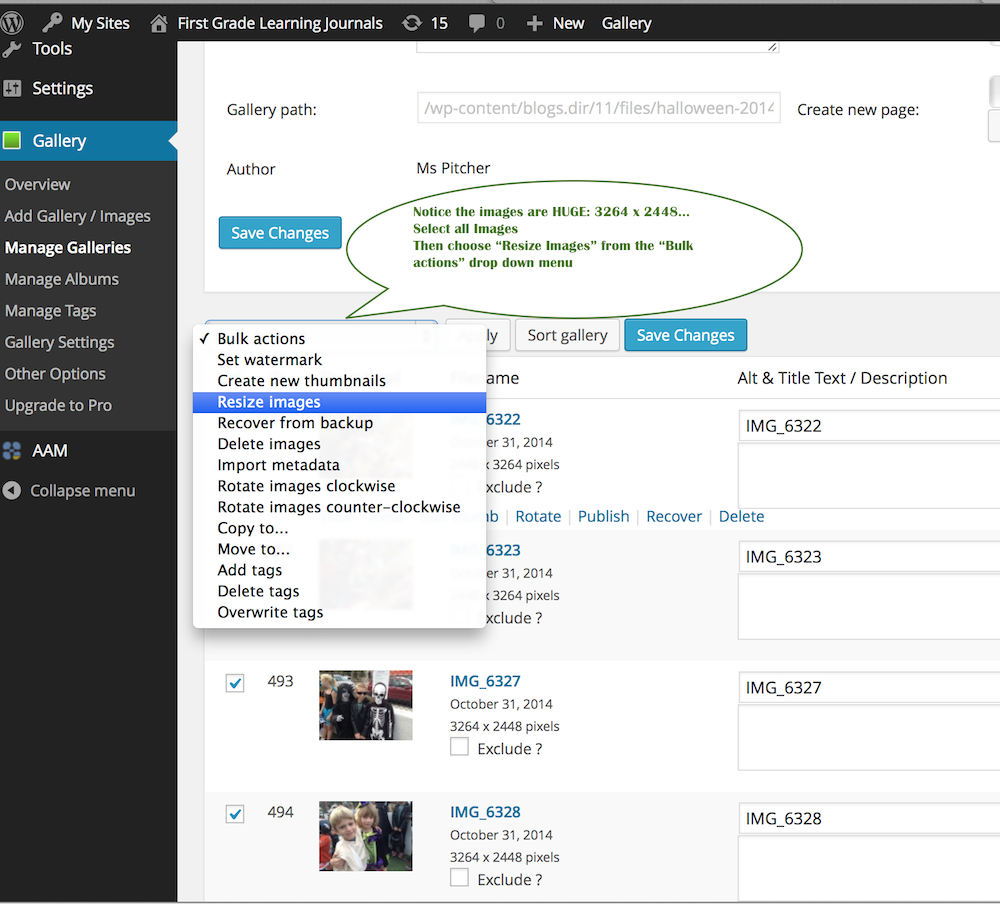
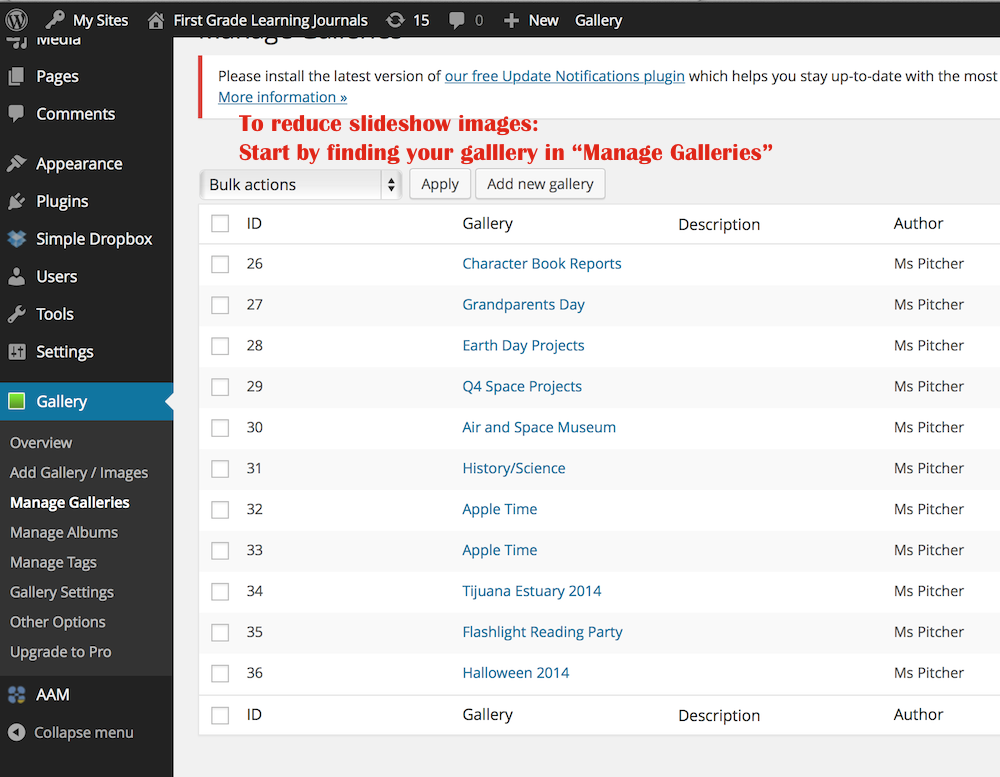
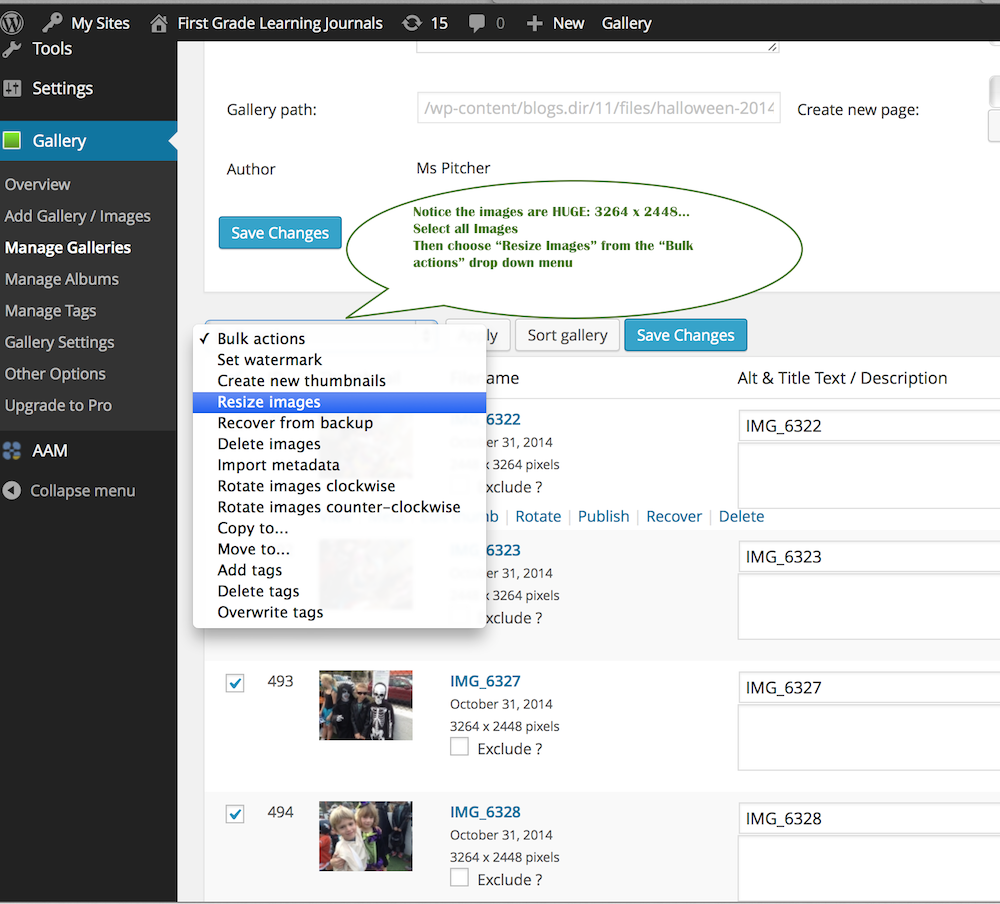
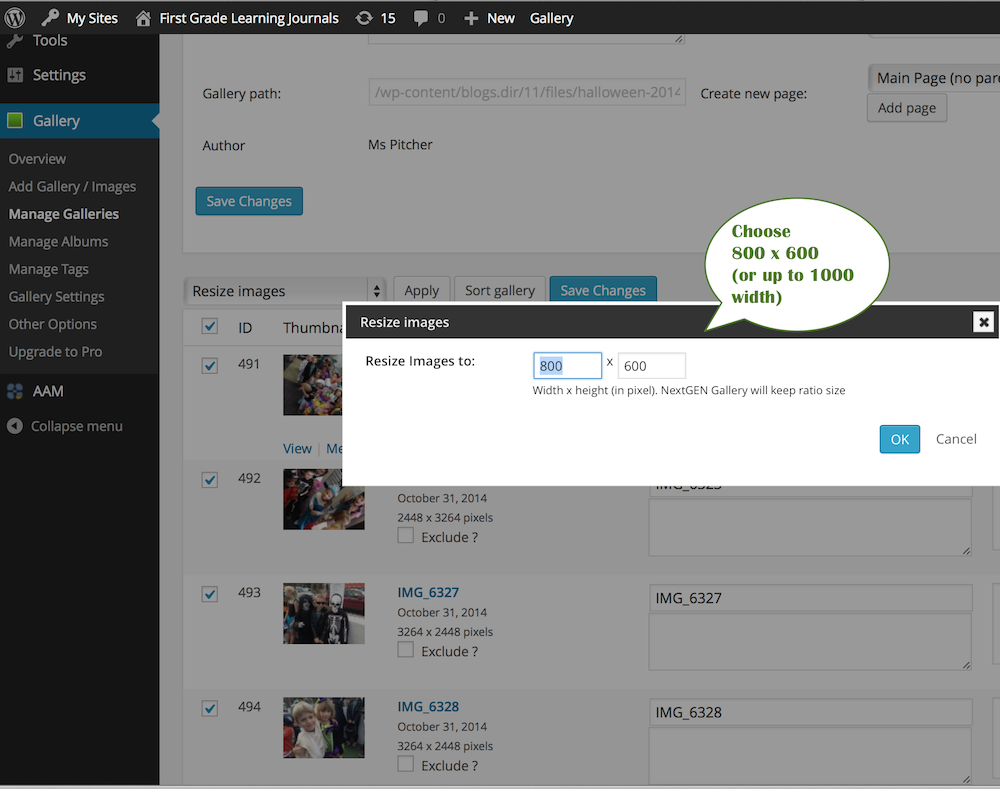
Enlarge Photo: we want photos to be as large as possible, but not so large that they break out of the frame–no more than 1000 px wide and they should be 72 dpi. You can batch edit the size of multiple photos in Preview* photo editing program that comes with your mac… or when making slideshows and importing multiple images through gallery, choose the reduce to 800 X ? option… *Note; you can set Preview to a custom width of
no more than 1000″ and it will remember it.
Add Title! Can’t forget to add a title to each blog–that’s what shows up in search, in Latest Posts, etc.
Making Doc Links open in New Window: if you choose open in new window it leaves your blog post open in a tab while student or parent looks at the syllabus, etc. they are downloading.

iBooks: How to sync iBooks between devices
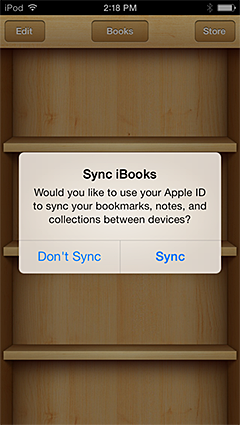
Your books, collections, highlights, notes, and bookmarks are available automatically across your Mac and iOS devices—just use OS X Mavericks, iOS 6 or later, and the same Apple ID to sign in to the iBooks Store.
OS X Mavericks v10.9 and later includes the iBooks app. This app works like iBooks on your iOS devices.
If you buy a book on your Mac, it’s automatically available on all of your iOS devices with iOS 6 or later. The same is true if you purchase a book from your iOS device. iOS 7 even prompts you if you already have purchased content. You can even synchronize your bookmarks, notes, and collections across your devices.
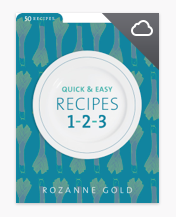
Items purchased on other devices may appear in your library with a cloud badge in the corner of the book’s cover. This indicates that the item is available, but hasn’t been downloaded to your Mac or iOS device. To download the item and start reading it, simply click or tap the book you want to read. The book downloads and opens after a few moments, depending on your current connection speed.
If you don’t see all of your purchased items in iBooks, make sure you “Show All Purchases” is turned on:
To see all your purchased books on your Mac, choose View > Show Purchases in iCloud.
To see all your purchased books on your iOS device, choose Settings > Books > Show All Purchases.
Sharing Notes from iBooks
Re: iBooks 1.2 – Notes export??
This is now possible in the latest iBooks (I tested with iOS 6)
Work amazing, even keeps the highlight color and context intact.
NitroGuy
via iBooks 1.2 – Notes export?? | Apple Support Communities.
Export iBooks Notes to Evernote step by step
by Vicki Davis
I shared how to Export your Kindle notes and highlights onto an Evernote card. Some of you use iBooks and may want to do something similar. Here are the two methods to get your notes and highlights from iBooks into Evernote.
Right now, the simplest way to pull from iBooks into Evernote is to use the Mac app called “Digested.” When you plug in your iBook device, it helps pull the data into Evernote. (See http://www.cultofmac.com/222010/digested-sucks-notes-and-highlights-from-ibooks-and-spits-them-out-in-evernote-or-pdf/)
Step 1 – Inside iBooks, you can click on a book.
Step 2 – Click on the book you want to get the highlights from.
In-Progress
Old Town Academy now uses office 365 as our email service provider.
To access your school’s email from a web browser go to
2- Type your school email and temporary password
3- click on outlook tab located on top of the screen.
If you don’t have a temporary password please email thiago@otacharter.org from an alternate email address and request one from me.
To setup your email on your Mac | iPhone | iPad watch the videos below
Mac
iPad | iPhone