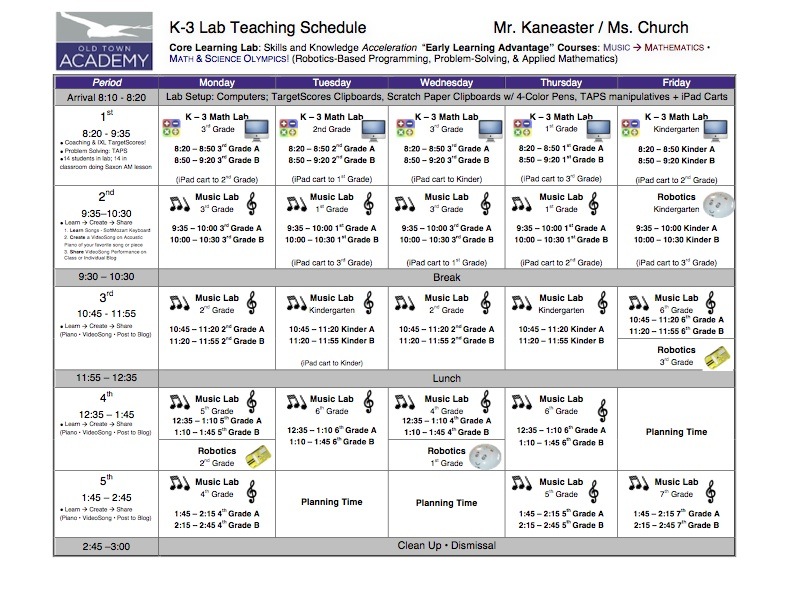
K-3 Learning Acceleration Lab Schedule: Early Learning Music -> Mathematics • Math & Science Olympics!
Reply

Testing upgrade to Subscribe2 plugin
I installed on monday the new image for the first floor at OTA.
Could you give me a feedback once tested?
In this new image we added 2 new apps at Robotics Folder (Kiss and Scratch)
Also, I did some changes to the www.spellingcity.com website hoping to fix the parental control issues blocking the website constantly.
Thanks
How to Unsubscribe from Subscribe2
You can unsubscribe from Subscribe2 as follows:
1. Registered Subscribers
There are three options for registered subscribers to unsubscribe from a blog:
If Subscribe2 plugin is activated on their own blog (Plugins > Installed)
Go to Users > Subscriptions
Click Unsubscribe next to the correct blog name
In the blog dashboard they want to unsubscribe fro
Blogs MU
A stunning teams, groups and networking oriented theme. Control the site appearance and allow members to customize their profile pages too – works great with BuddyPress, WordPress and Multisite!
Download Blogs MU
or get all our 350+ premium plugins & themes »
The Beginner’s Guide to WordPress Multisite
Using WordPress Multisite: A Network of Websites at Your Fingertips
via Using WordPress Multisite: A Network of Websites at Your Fingertips | Wptuts+.
Record your screen
You can use QuickTime Player to make a video recording of your screen or just a region of your screen and save it as a movie file for later viewing. This can be helpful for showing others how to perform a task, workflow, or for training.
Choose File > New Screen Recording. To start recording what’s occurring on your Mac’s screen, click the round record button.
You can record some of all of the screen:
To stop recording, click the stop button in the menu bar, or press the Command-Control-Escape key combination (all at once) on the keyboard.
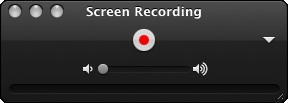
Clicking the triangle icon gives you additional options, such as letting you Continue reading
